Keep your identity
Use your logo, colours, signature and certificate wording in the design you upload.
 For institutions
YOUR BRAND, YOUR CERTIFICATES
Upload your blank certificate design once. Place the name, programme, date, QR and code where they belong; reuse the layout for your next participant list.
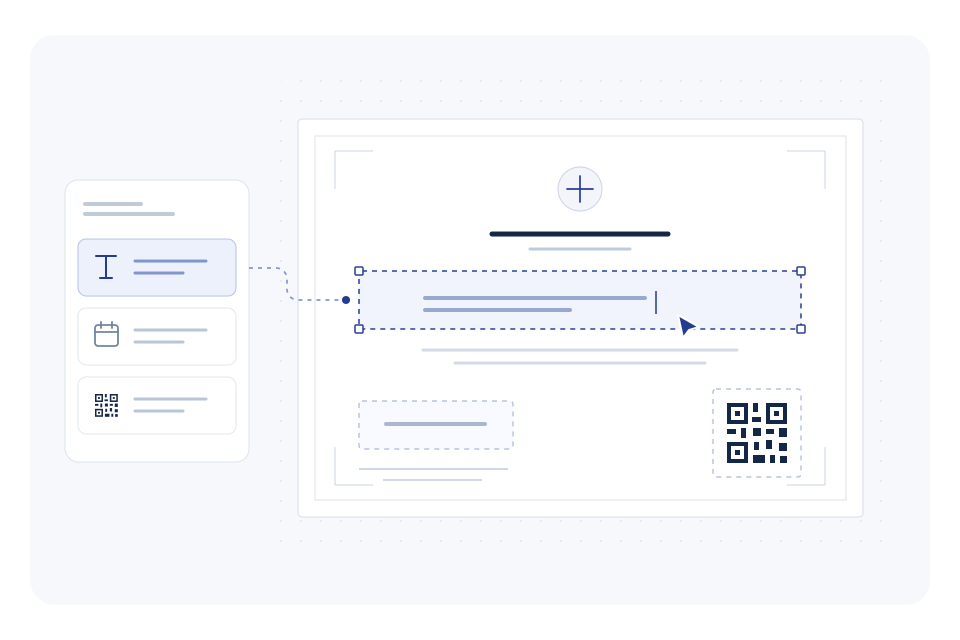
Use your logo, colours, signature and certificate wording in the design you upload.
Position and align the changing details in the template editor.
When you publish, the saved layout and participant details come together in a PDF.
YOUR WORKFLOW
Choose a single-page PDF, PNG or JPEG. Leave the participant-specific areas empty.
Place the name, programme, date, QR and verification code. Save the layout.
Select it when preparing one certificate or importing a participant list.
IN PRACTICE
An academy runs the same programme each month. The team keeps one approved certificate design, then changes the participant list and dates for each group.
Talk through your workflow → SPECIMEN
CERTIFICATE OF COMPLETION
Professional Training Issued to Alex MorganVI-SAMPLE-2026
A FEW DETAILS
Yes. Export a blank, single-page PDF, PNG or JPEG from your design tool and upload it as a template.
No. VerifyInt creates the code and QR when the certificate is published and places them in the saved positions.
Yes. A built-in layout is available when you create a template without a background file.